

For years, the idea of “cinematic” video felt tied to expensive cameras. When iPhone footage didn’t quite match the look of films or high-end content online, it was easy to assume the limitation was the device itself. A phone, after all, is a phone.
But that assumption doesn’t really hold up anymore.
Over the past decade, filmmakers have repeatedly shown that the camera matters far less than the process behind it. What separates cinematic footage from everything else isn’t the sensor size or the price tag — it’s control. Control over light, colour, movement, and how the image is shaped after it’s captured.
The iPhone now offers more of that control than most people realise.
The proof: real films shot on iPhone
Apple didn’t start pushing cinematic features on the iPhone out of nowhere. Long before “Shot on iPhone” became a global campaign, filmmakers were already experimenting with phones as serious creative tools.
Sean Baker famously shot Tangerine entirely on an iPhone 5s, not because he couldn’t access better cameras, but because the phone allowed him to move quickly and invisibly through real locations. Steven Soderbergh later shot Unsane and High Flying Bird on iPhones for similar reasons — flexibility, intimacy, and freedom.
This idea of iphones as serious filmmaking tools hasn’t gone away. In fact, it’s resurfacing again with 28 Years Later. Danny Boyle has always prioritised immediacy and realism over polish, and the decision to incorporate iPhone-based filmmaking techniques fits that philosophy perfectly. Just like the original film, the goal isn’t to make the camera invisible by making it expensive — it’s to make it invisible by making it flexible. When a filmmaker chooses a phone, it’s rarely about novelty. It’s about speed, intimacy, and control.
In all of these cases, the phone wasn’t used as a gimmick. It was part of a deliberate workflow. The footage still had to be lit carefully, exposed properly, and graded thoughtfully. The cinematic quality came from intention, not hardware.
That same mindset applies to anyone shooting on an iPhone today.

What “cinematic” actually means in practice
Cinematic video is often misunderstood as a specific look. In reality, it’s more about how an image behaves than how it appears at first glance. Cinematic footage tends to feel calm, cohesive, and intentional rather than punchy or overstimulated.
- In practical terms, cinematic footage usually has:
- Controlled highlights instead of blown-out whites
- Natural colour rather than heavy saturation
- Softer contrast that preserves detail
- Consistency across shots and scenes
By default, iPhones do the opposite. They sharpen aggressively, boost contrast, and push colours to make footage look good instantly. That’s great for quick clips, but it limits what you can do later.
This is exactly why Apple introduced Log video to the iPhone.
Why Apple Log matters (even though it looks bad at first)
Apple Log isn’t designed to look good straight out of the camera. In fact, the first time most people use it, the footage looks flat, grey, and unfinished. Compared to standard iPhone video, it can feel like a downgrade.
It isn’t.
Log footage is intentionally flat because it captures more information, especially in the highlights and shadows. Instead of baking in contrast and colour, Apple Log preserves flexibility. That flexibility is what allows filmmakers and editors to shape the image properly in post-production.
This is the same reason Log profiles exist on professional cinema cameras. The principle hasn’t changed — Apple has simply brought it to the phone.

The mistake almost everyone makes with Log footage
Where most people get stuck is what happens next.
They shoot in Apple Log, import the footage into their editor, and immediately apply a cinematic LUT or preset. When the image looks strange or washed out, they assume Log doesn’t work.
The issue isn’t Log. It’s the missing step in between.
Log footage must be converted before it’s graded.
A conversion LUT isn’t about style or mood. It’s a technical correction that brings Apple Log footage back into a normal colour space (Rec.709), restoring contrast and colour balance so the footage behaves properly.
A good conversion step should:
- Restore contrast without crushing shadows
- Correct colour response so skin tones look natural
- Provide a clean, neutral base for creative grading
This is why we offer a free Apple Log Conversion LUT pack. It’s not meant to make footage cinematic on its own — it’s meant to make Log footage usable, so creative decisions actually work as intended.
Where cinematic LUTs fit (and where they don’t)
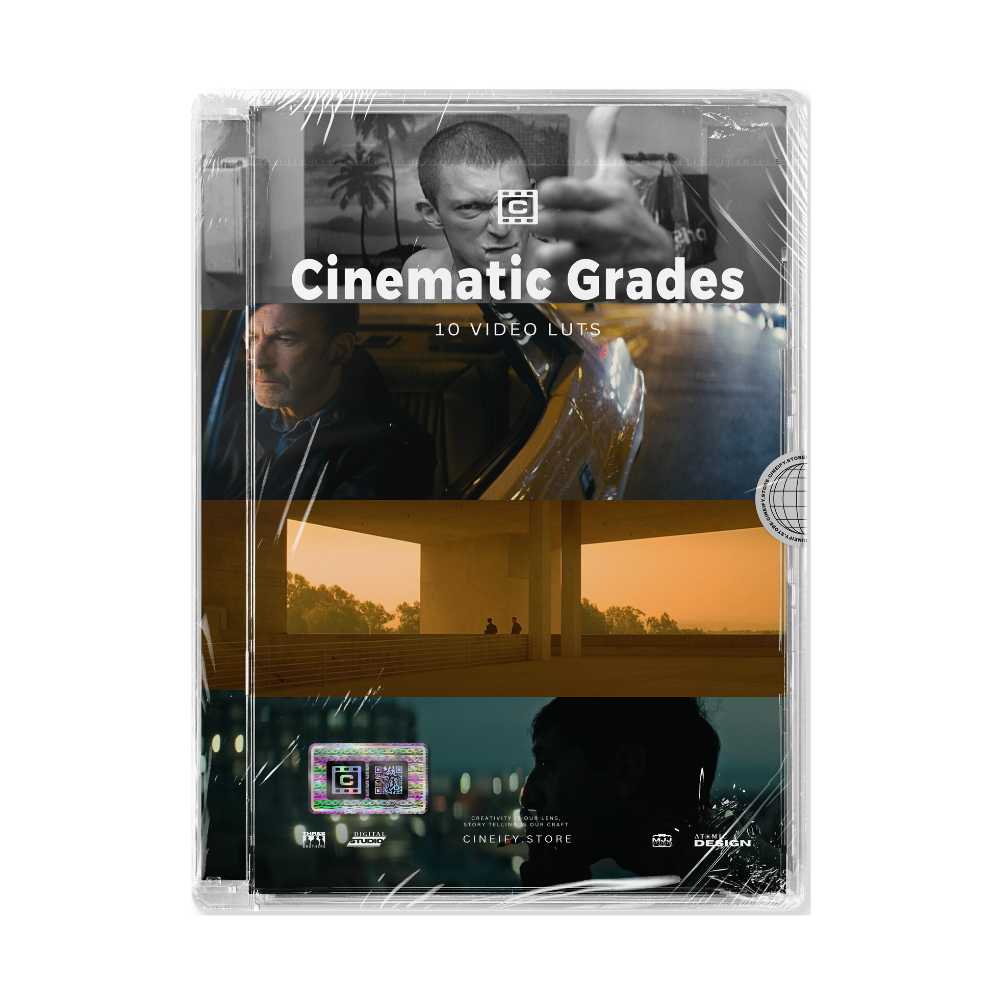
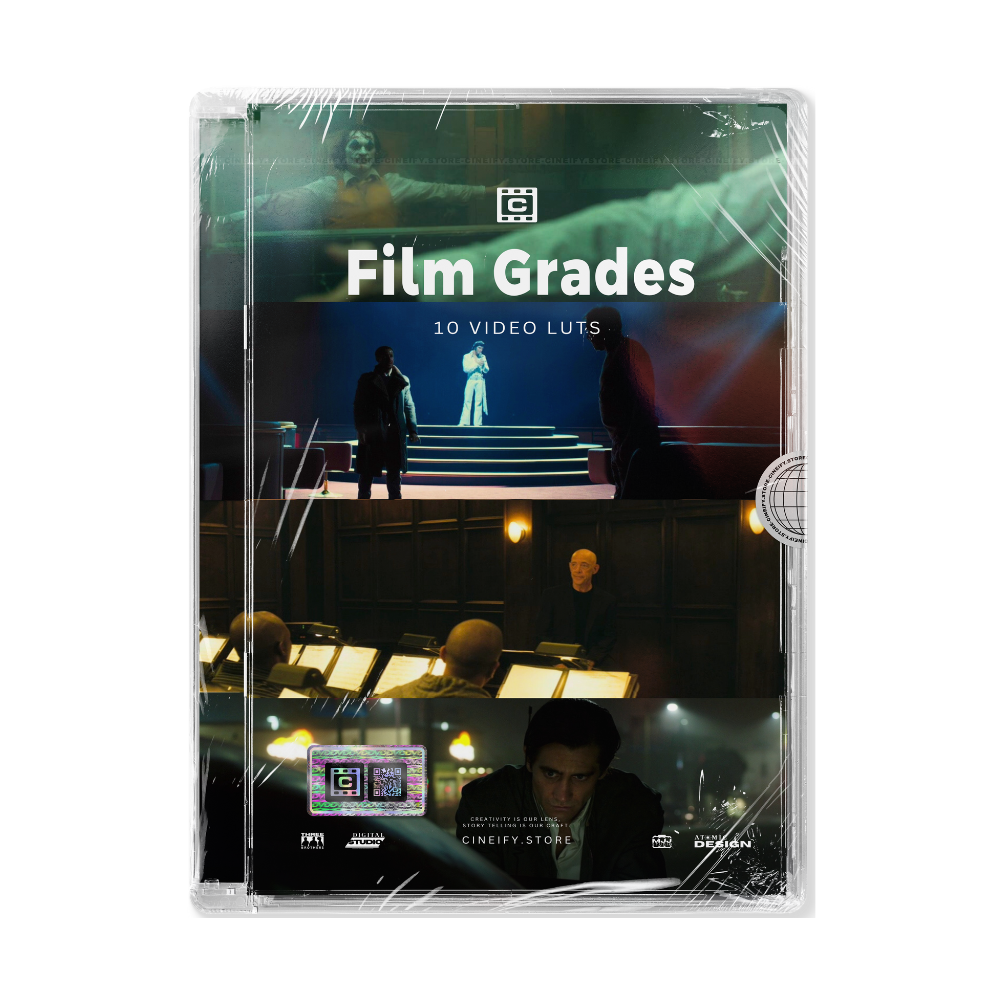
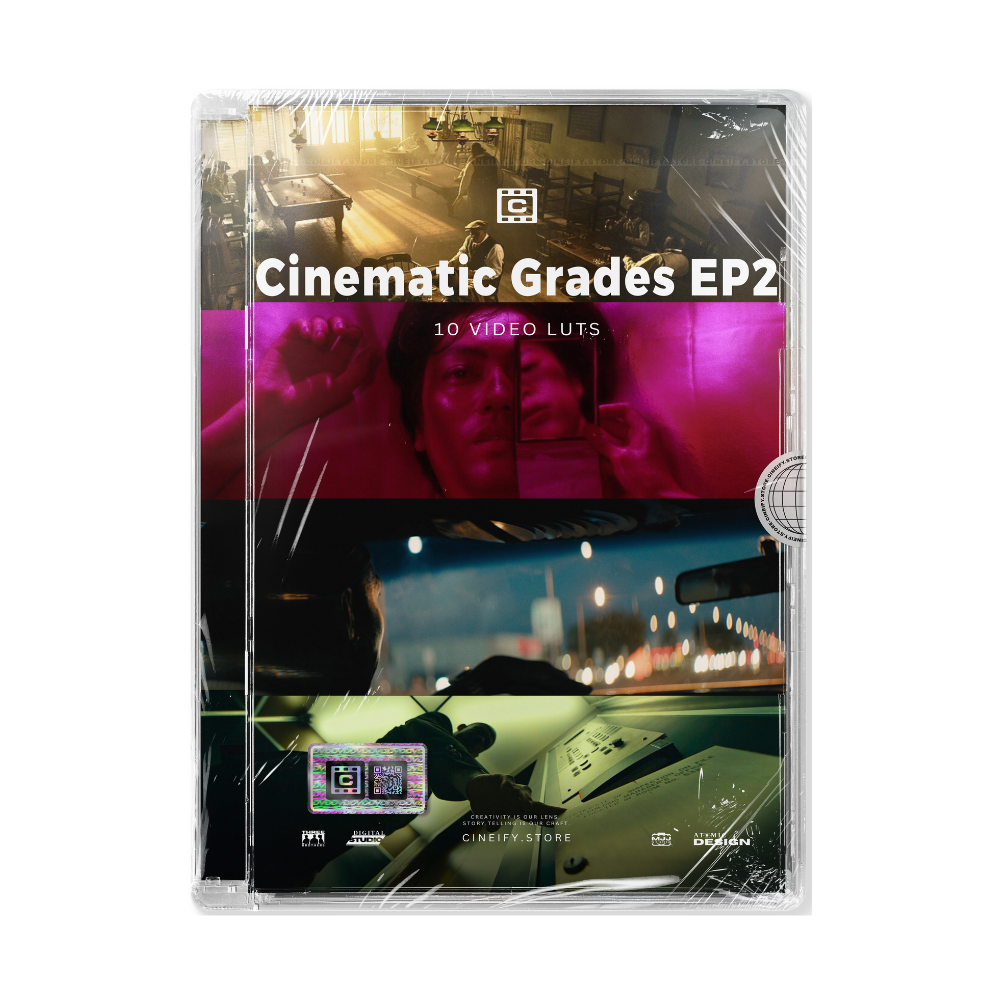
Once your footage has been converted correctly, cinematic LUTs finally have something solid to work with. At this stage, you’re no longer fixing problems; you’re shaping a mood.
Cinematic LUTs work best when they’re subtle. They should guide the image rather than overpower it. If a LUT feels obvious or extreme, it’s usually being pushed too far or applied too early in the process.
Used properly, cinematic LUTs help:
- Create a consistent look across clips
- Gently shape contrast and colour
- Save time without replacing creative judgement
They’re tools, not shortcuts.

Shooting habits still matter more than presets
No amount of colour grading can fully fix poorly captured footage. Cinematic video starts before you press record, and the iPhone is especially sensitive to certain choices.
Simple habits make a noticeable difference:
- Slightly underexposing instead of blowing out highlights
- Using one main light source rather than flat, overhead lighting
- Letting shots breathe instead of constantly moving the camera
Many cinematic shots feel uneventful while you’re filming them. That restraint is often what makes them feel intentional and watchable later.
A simple workflow that works
When everything is stripped back, the cinematic iPhone workflow is straightforward:
- Shoot in Apple Log
- Convert the footage properly
- Apply creative grading sparingly
Skipping steps or changing the order usually leads to frustration. Following this process gives you consistency, control, and far better results with far less effort.
Final thoughts
Cinematic iPhone video isn’t about tricks, hacks, or pretending a phone is something it’s not. It’s about understanding how the image is captured and how it’s finished.
Apple Log gives you control.
Conversion gives you balance.
Creative grading gives you style.
If you’re getting started with Log, begin with the free Apple Log Conversion LUT pack and build from there. It’s the foundation everything else depends on.
From that point on, the difference isn’t subtle.


Leave a comment
This site is protected by hCaptcha and the hCaptcha Privacy Policy and Terms of Service apply.